
cli-usage
Never get surprised by AI CLI rate limits again.




A tiny tray/menu-bar indicator for Claude Code, Codex CLI, and Gemini CLI usage.
Note: This project was vibe coded — built quickly with AI-assisted flow, practical first, polished enough to ship.
Preview
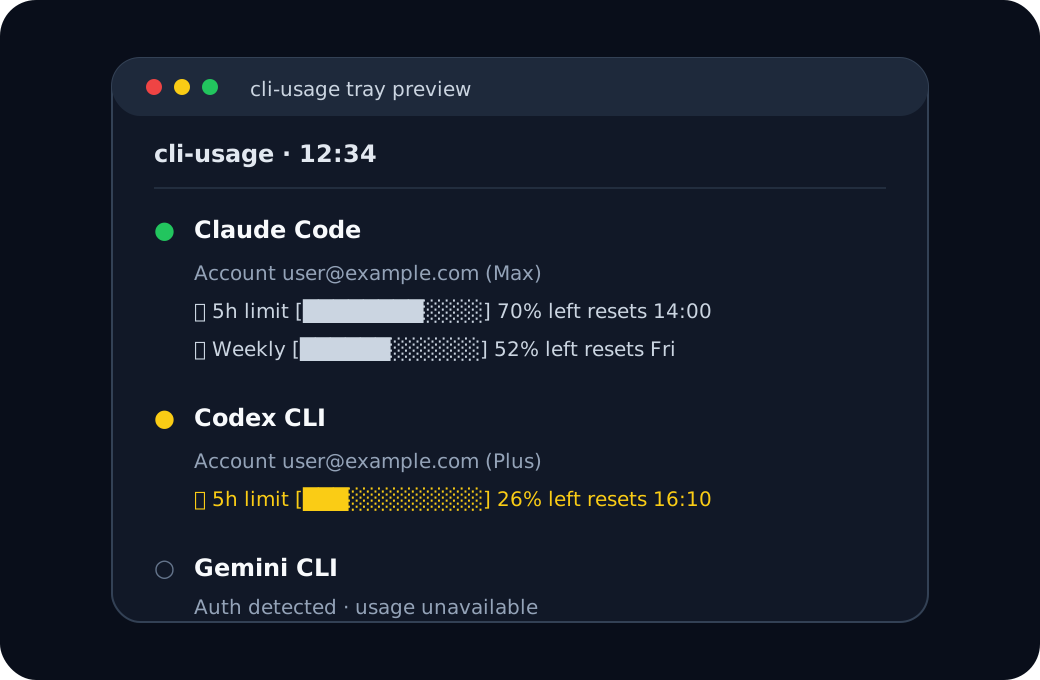
What it tracks
cli-usage keeps a small always-visible CLI indicator in your tray/menu bar and shows:
- installed AI CLI tools
- account/auth status
- remaining usage/rate-limit windows
- reset times
- one-click terminal shortcuts for each installed CLI
- colored status icons in the menu text when limits are getting close
Supported CLIs
| CLI | Status | What shows |
|---|---|---|
| Claude Code | Supported | Account, tier, 5h limit, weekly limits, model-specific weekly limits when available |
| Codex CLI | Supported | Account, plan, 5h limit, weekly limit, additional limits, credits when available |
| Gemini CLI | Partial | Credential/auth detection. Live usage is not shown because there is no stable public usage endpoint wired in. |
Cool bits
- Cross-platform tray frontend for macOS, Windows, and Linux using
pystray - Native GTK/AppIndicator frontend for Linux desktops that support AppIndicator
- Auto-refreshes every 60 seconds
- Color-coded status cues in the app:
- 🟢 green = healthy
- 🟡 yellow = under 30% left
- 🔴 red = under 10% left
- Cross-platform tray icon changes color when usage gets low
- Menu rows include colored status icons beside each limit
- Linux GTK menus use real colored text via Pango markup
- GTK frontend switches to warning/error-style system icons when usage gets low
- Unified
install.pyplus small OS wrapper scripts for Linux, macOS, and Windows - No token logging and no extra analytics
- Pinned dependency files:
requirements.txtandpyproject.toml - Provider response shape validation before rendering usage
- Retry/backoff around transient network failures and 429/5xx responses
- Unit tests for formatting, validation, retry behavior, and installer helpers
Install in 30 seconds
Clone the repository:
git clone https://github.com/nimaansari/CLI-Usage.git
cd CLI-Usage
Recommended: unified installer
The easiest path is the new cross-platform installer:
python3 install.py
It will:
- check Python version
- choose the best frontend for your OS
- create a local
.venvand install pinned Python dependencies when needed - create a per-user startup/login entry
- launch the tray app
Useful installer flags:
python3 install.py --frontend xplat      # force pystray frontend
python3 install.py --frontend gtk        # force Linux GTK/AppIndicator frontend
python3 install.py --no-autostart        # install/run without login startup
python3 install.py --no-launch           # install only, do not launch now
python3 install.py --skip-deps           # do not install Python packages
python3 install.py --venv .venv-cli-usage # choose a custom virtualenv path
python3 install.py --dry-run             # preview actions without changing files
Linux
chmod +x setup.sh
./setup.sh
setup.sh now delegates to install.py --frontend auto --install-system-deps. The cross-platform frontend uses a local .venv, avoiding messy system/user Python installs.
If you do not want sudo apt-get system package installation, use:
python3 install.py --frontend xplat
Manual run:
python3 cli_usage_gtk.py      # Linux GTK frontend
python3 cli_usage_xplat.py    # cross-platform frontend
macOS
chmod +x setup_macos.sh
./setup_macos.sh
Manual run:
python3 -m pip install --user -r requirements.txt
python3 cli_usage_xplat.py
Windows
From PowerShell:
powershell -ExecutionPolicy Bypass -File .\setup_windows.ps1
Manual run:
python -m pip install --user -r requirements.txt
python .\cli_usage_xplat.py
Requirements
Common
- Python 3.9+
- The CLI tools you want to monitor installed and authenticated:
claudecodexgemini
macOS / Windows / generic Linux frontend
The installer creates a local virtual environment automatically:
python3 install.py --frontend xplat
Manual install if you prefer managing your own environment:
python3 -m venv .venv
.venv/bin/python -m pip install -r requirements.txt
.venv/bin/python cli_usage_xplat.py
Linux GTK/AppIndicator frontend
Debian/Ubuntu-style systems:
sudo apt-get install -y \
  gir1.2-ayatanaappindicator3-0.1 \
  gnome-shell-extension-appindicator \
  python3-gi \
  python3-gi-cairo
How it works
cli_usage_core.py contains the shared data layer. It checks whether each CLI executable exists, reads local auth/account metadata, and calls first-party usage endpoints when available:
- Claude Code: Anthropic OAuth usage endpoint
- Codex CLI: ChatGPT Codex usage endpoint
- Gemini CLI: local credential detection only
Frontends:
cli_usage_gtk.py— Linux GTK/AppIndicator tray frontendcli_usage_xplat.py— pystray frontend for macOS, Windows, and Linux
Privacy
This app reads local CLI credential files only to discover the current account and request usage data from the relevant first-party service. It does not store tokens, print tokens, or send them anywhere other than the official usage endpoints used by the corresponding CLI provider.
Still, treat this like any local tool that can read CLI auth files: review the code before running it on a machine with sensitive credentials.
Uninstall
Linux
rm -f ~/.config/autostart/cli-usage.desktop
pkill -f cli_usage_gtk.py || true
pkill -f cli_usage_xplat.py || true
macOS
launchctl unload ~/Library/LaunchAgents/com.user.cli-usage.plist
rm -f ~/Library/LaunchAgents/com.user.cli-usage.plist
pkill -f cli_usage_xplat.py || true
Windows
Remove-Item "$env:APPDATA\Microsoft\Windows\Start Menu\Programs\Startup\cli-usage.lnk"
Then quit the tray app from the menu or stop the Python process.
Tests
Run the built-in unit tests and installer helper checks:
python3 -m unittest discover -s tests -v
Troubleshooting
The tray icon does not appear on Linux
- Make sure AppIndicator support is installed and enabled.
- On GNOME/Wayland, log out and back in after installing the extension.
- Check logs:
tail -f /tmp/cli-usage.log
The tray icon looks like an error or "info" symbol
The Linux GTK frontend uses stock icon-theme icons:
| State | Triggered when | Icon name | Typical rendering |
|---|---|---|---|
| Healthy | ≥30% remaining | dialog-information | Blue circle with a white "i" |
| Warning | <30% remaining | dialog-warning | Yellow triangle |
| Critical | <10% remaining | dialog-error | Red icon |
The blue "i" can look alarming, but it means usage is fine — there is no standard "success" icon in the freedesktop icon-theme spec, so dialog-information is the conventional substitute. The label text beside the icon (e.g. 🟢 39%) is the authoritative status.
Usage says unavailable
Common causes:
- The CLI is not authenticated.
- The provider changed an internal usage endpoint.
- Network access is blocked.
- The auth file format changed in a new CLI release.
Gemini usage is unavailable
This is expected. The app currently detects Gemini auth status, but does not show live Gemini usage because there is no stable public endpoint wired into this project.
Roadmap
- README badges and visual polish
- Mock preview image
- Simple logo/hero art
- Colored status icons in menu rows and tray icon
- Pinned dependency file / pyproject metadata
- Unit tests for core behavior
- Provider response schema validation
- Retry/backoff around network calls
- Linux GTK colored text labels
- Cleaner unified installer with dry-run/no-launch/no-autostart modes
- Native desktop notifications when usage is low
- Configurable refresh interval
- Package as a macOS app / Windows executable
- Optional config file for hiding unused CLIs
- Real screenshots from each OS
Project structure
assets/logo.svg        # README hero logo
assets/screenshot.svg  # README preview mockup
install.py              # unified installer; creates .venv for xplat frontend
cli_usage_core.py      # shared usage/auth detection
requirements.txt       # pinned runtime deps
pyproject.toml         # project metadata
tests/                 # unit tests
cli_usage_gtk.py       # Linux AppIndicator UI
cli_usage_xplat.py     # pystray cross-platform UI
setup*.sh/ps1          # platform startup installers
License
MIT License. See LICENSE.